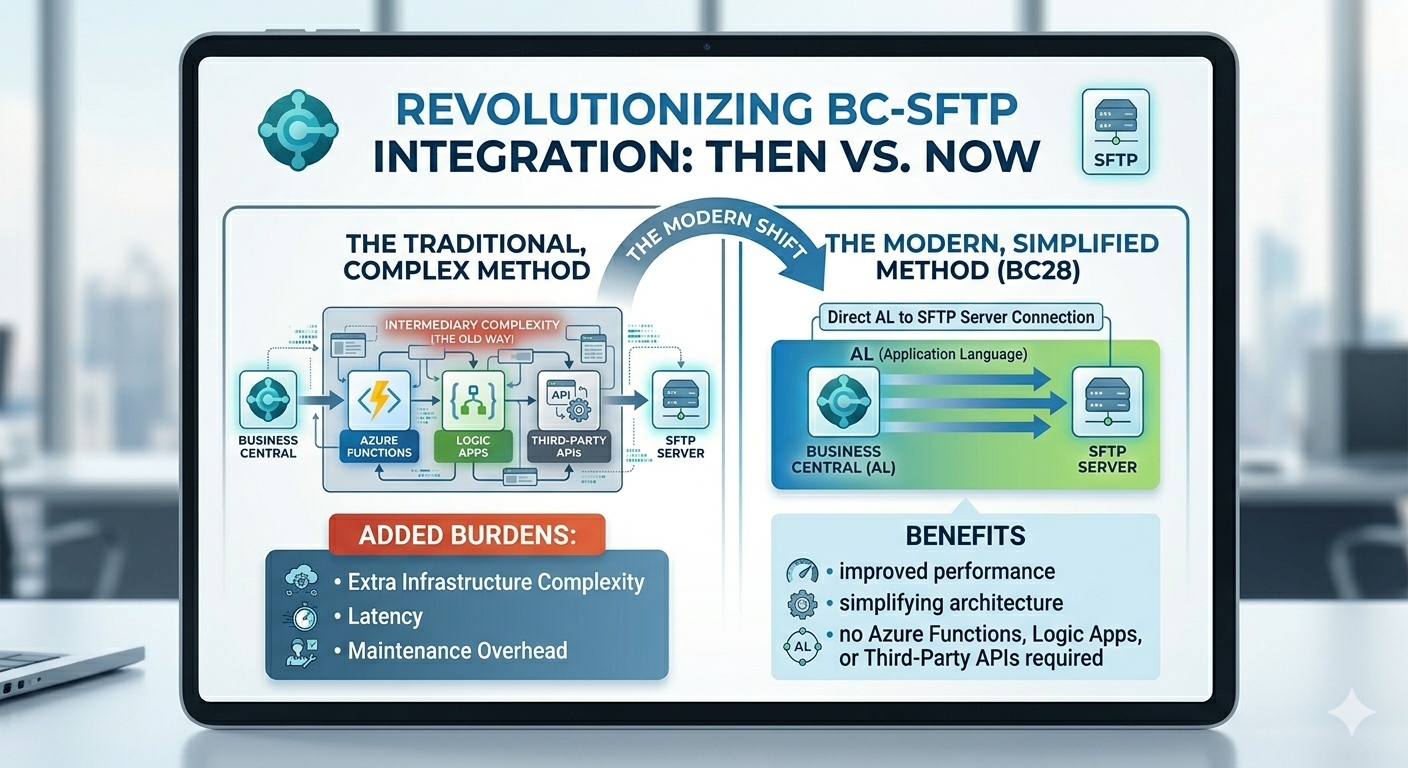
With the release of Dynamics 365 Business Central 2026 Wave 1 (v28), Microsoft has introduced a long-awaited capability: native SFTP integration directly from AL code.
This removes the dependency on external services like Azure Functions or Logic Apps and opens up a cleaner, more efficient integration pattern for file-based workflows.
In this blog, we’ll explore how this works, why it matters, and how you can start using it in your AL projects
Why Native SFTP Matters?
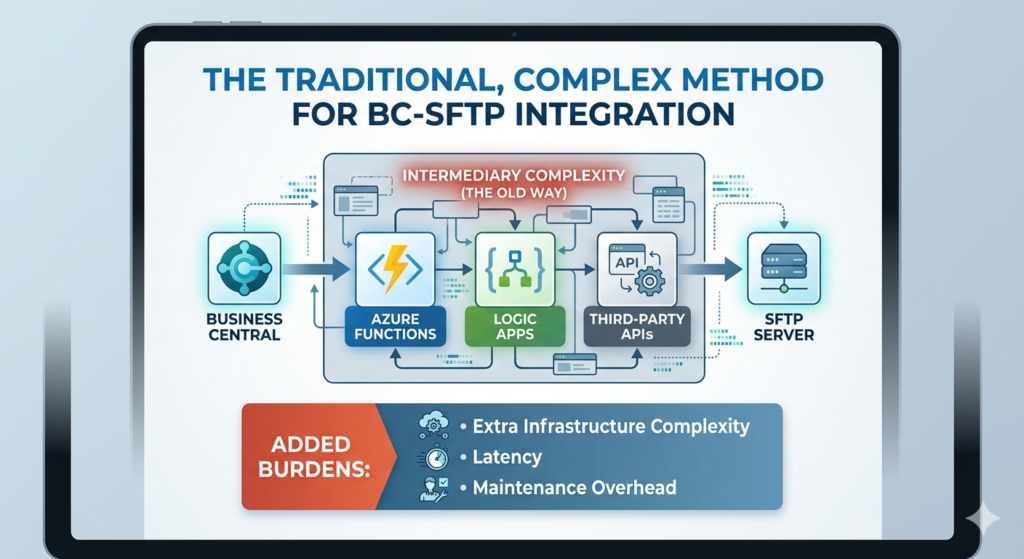
Traditionally, integrating Business Central with SFTP servers required:
- Azure Functions
- Logic Apps
- Third-party APIs
While powerful, these approaches added:
- Extra infrastructure complexity
- Latency
- Maintenance overhead
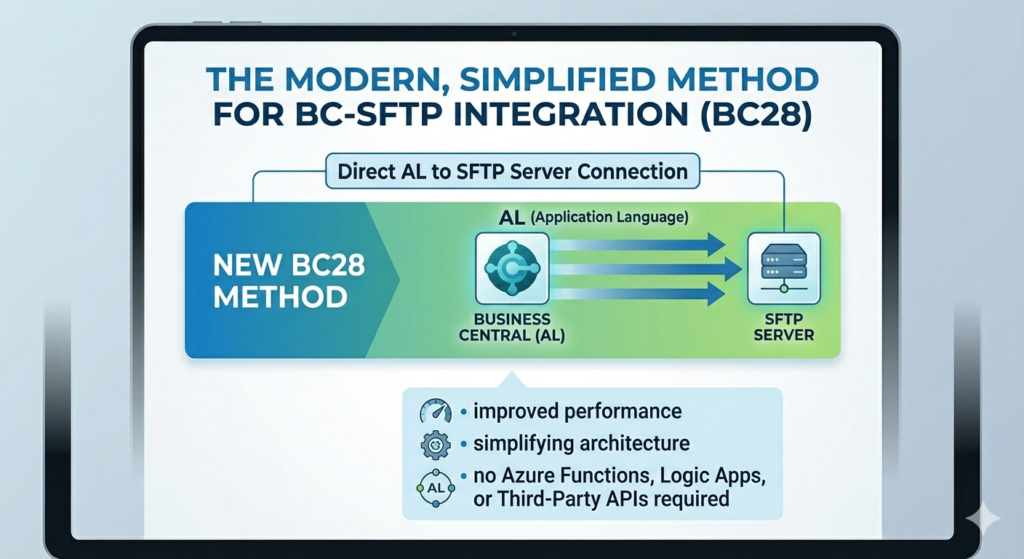
Now, with BC28, you can directly connect to SFTP servers from AL, simplifying architecture and improving performance.
What’s New in BC28?
Microsoft introduced a new SFTP Client module in the System Application.
Key highlights:
- Built using the SSH.NET library
- Supports synchronous and asynchronous operations
- Fully accessible via AL code
- No need for external middleware
The core component is the SFTP Client codeunit, which provides all required operations to interact with an SFTP server.
Supported Authentication Methods
The native SFTP client supports multiple authentication types:
- Username + Password
- Username + Private Key (without passphrase)
- Username + Private Key (with passphrase)
This flexibility ensures compatibility with most enterprise-grade SFTP servers.
Understanding Server Fingerprints (Critical Step)
Before connecting, you must register the server fingerprint.
What is a fingerprint?
A fingerprint is a unique identifier of the server’s SSH public key, ensuring you’re connecting to the correct server.
if you’re using Windows SFTP then you can get the SSH Public Key by running below command.
C:\ProgramData\ssh\ssh_host_ed25519_key(ED25519 – recommended)C:\ProgramData\ssh\ssh_host_rsa_key(RSA)C:\ProgramData\ssh\ssh_host_ecdsa_key(ECDSA)
Why is it important?
- Prevents man-in-the-middle attacks
- Ensures secure communication
- Acts as a trust validation mechanism
Typically, your SFTP admin provides this, or you can generate it using tools like ssh-keygen.
Core SFTP Operations in AL
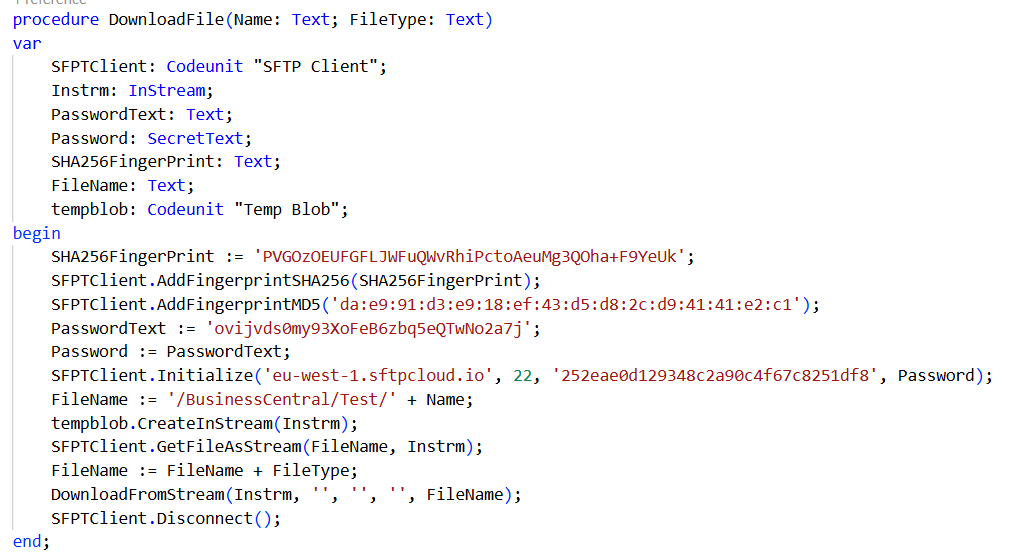
Download File
SFTPClient.GetFileAsStream('YourDataFile.txt', InStream);- Retrieves a file from SFTP
- Returns content as
InStream
Upload File
SFTPClient.PutFileStream(Path, FileName, Instream);- Upload the files to folder or directory.
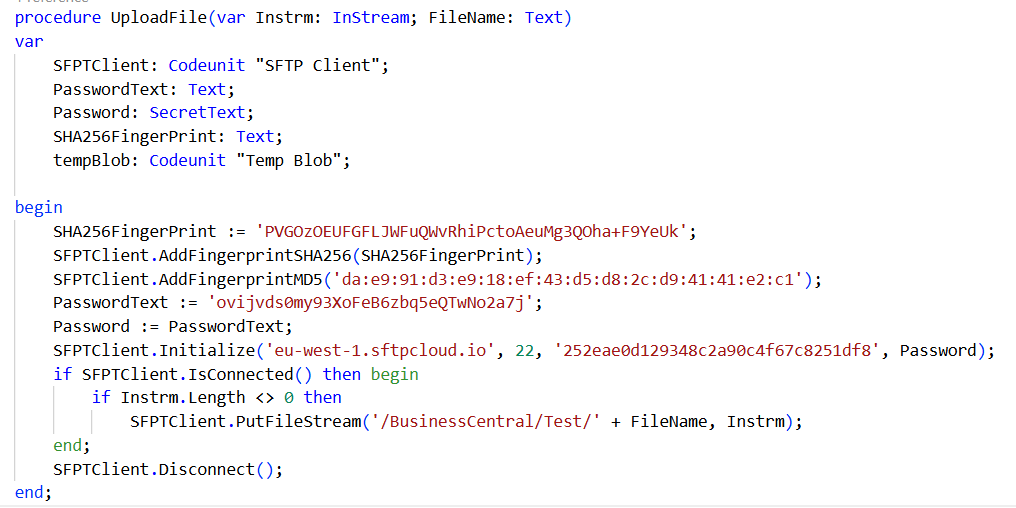
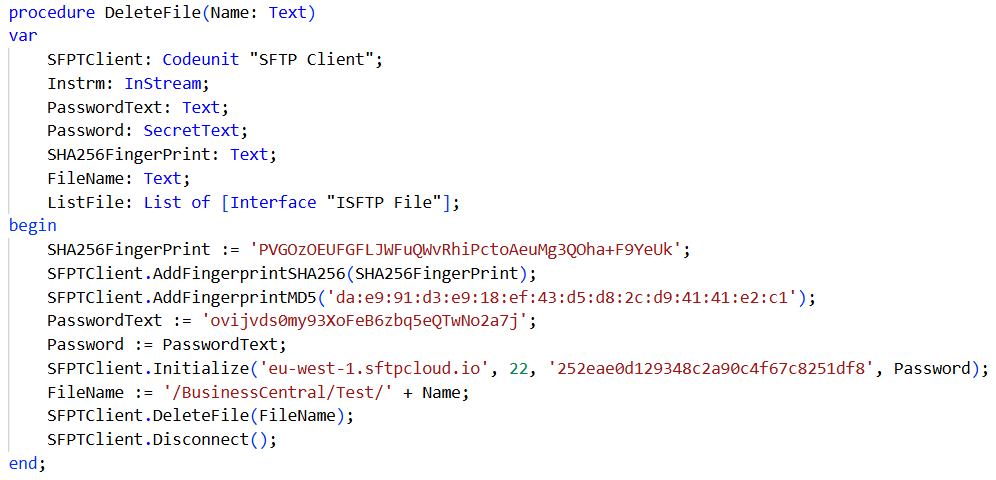
Delete File
SFTPClient.DeleteFile(Path);- Deletes a file from the remote server
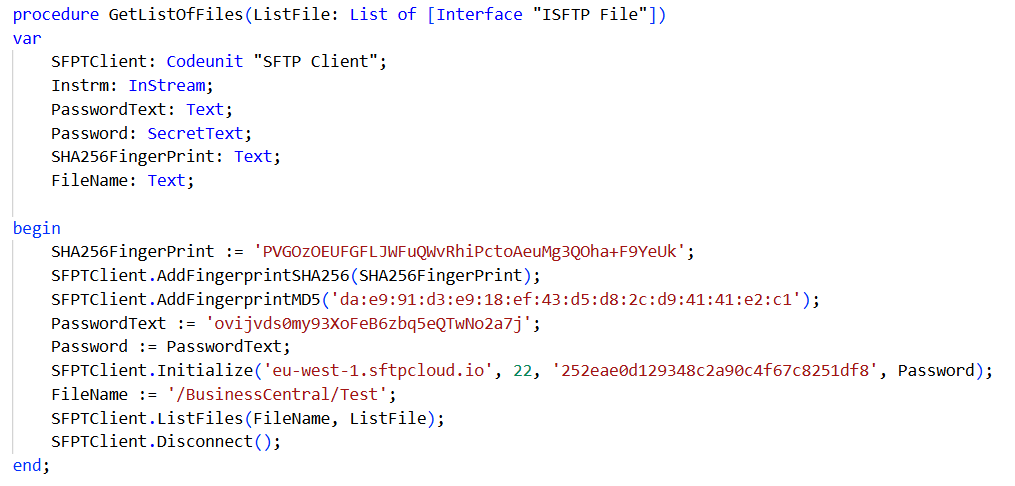
List Files
SFTPClient.ListFiles(Path, FileList);- Lists files in a directory
- Returns a collection of SFTP file interfaces
Real-World Use Cases
This feature is a game changer for:
- 📦 EDI integrations (orders, invoices, ASN files)
- 🏦 Bank file imports/exports
- 🧾 Payroll or HR system integrations
- 📊 Scheduled data exchange with legacy systems
- 📁 Document exchange with partners
Best Practices
To ensure secure and reliable implementation:
- ✅ Always validate and store server fingerprints
- ✅ Use key-based authentication where possible
- ✅ Handle exceptions from SFTP operations
- ✅ Ensure proper connection lifecycle (connect/disconnect)
- ✅ Log operations for audit and troubleshooting
Final Thoughts
The introduction of native SFTP support in AL is a major step forward for Business Central developers.
It enables:
- Cleaner architecture
- Faster integrations
- Reduced dependency on Azure components
If you’re working on integrations in BC28, this feature should definitely be part of your toolkit.
Stay tuned for more updates..
UPDATE 27/04/2024:
Microsoft decided today to not support this module again:
Due to ongoing platform hardening efforts, supporting this module going forward would require a fundamental rewrite of both the implementation and how it connects to SFTP servers. The scope of that work has been evaluated as too large relative to the value the module currently provides.
Given that, we have decided to remove the module again, either by pulling the plug on it, or by deprecating it.
Going forward, connecting to SFTP will need to be done via alternatives such as Azure Functions again.