Reduce Database Size, Improve Performance, and Scale Your Business Central Environment
Every Business Central implementation eventually reaches a point where document attachments start consuming a significant portion of database storage. Purchase invoices, sales documents, customer contracts, quality certificates, delivery notes, engineering drawings, and compliance documents quickly accumulate over time.
While storing these documents directly in Business Central has always been convenient, it also contributes to larger databases, longer backup times, and increased storage costs.
Microsoft has introduced External File Storage to solve this challenge. Instead of storing attachments inside the Business Central database, organizations can now securely store them in Azure Blob Storage, Azure File Share, or SharePoint, while continuing to access documents directly from Business Central without changing the user experience.
In this article, we’ll explore why this feature matters, how it works, configuration steps, best practices, and real-world scenarios where it delivers immediate value.
Why External File Storage Matters
Many Business Central customers underestimate how much storage document attachments consume.
Consider an organization processing:
500 purchase invoices per day
Delivery notes
Signed contracts
Product images
Technical manuals
Quality certificates
After several years, millions of attachments may reside inside the Business Central database.
The result?
Database growth
Slower backup and restore
Higher storage costs
Reduced performance
Increased administration effort
External File Storage separates transactional data from document storage, allowing Business Central to remain lean while storing documents in enterprise-grade cloud storage.

Benefits of External File Storage
1. Reduce Database Size
Business Central database capacity is limited.
Moving attachments outside the database dramatically reduces storage consumption and helps organizations stay within their allocated capacity.
2. Better Performance
Smaller databases typically provide:
Faster page loading
Improved SQL performance
Faster upgrades
Reduced maintenance windows
Shorter backup times
This becomes especially valuable for customers with large environments.
3. Lower Storage Costs
Database storage is expensive.
Azure Blob Storage and SharePoint provide far more economical long-term storage for PDFs, images, and scanned documents.
Organizations can save significantly while maintaining secure access to files.
4. Enterprise Document Management
Using SharePoint offers additional capabilities including:
Version history
Security permissions
Collaboration
Document retention
Compliance
Business Central becomes the transactional system while SharePoint manages documents.

Supported Storage Providers
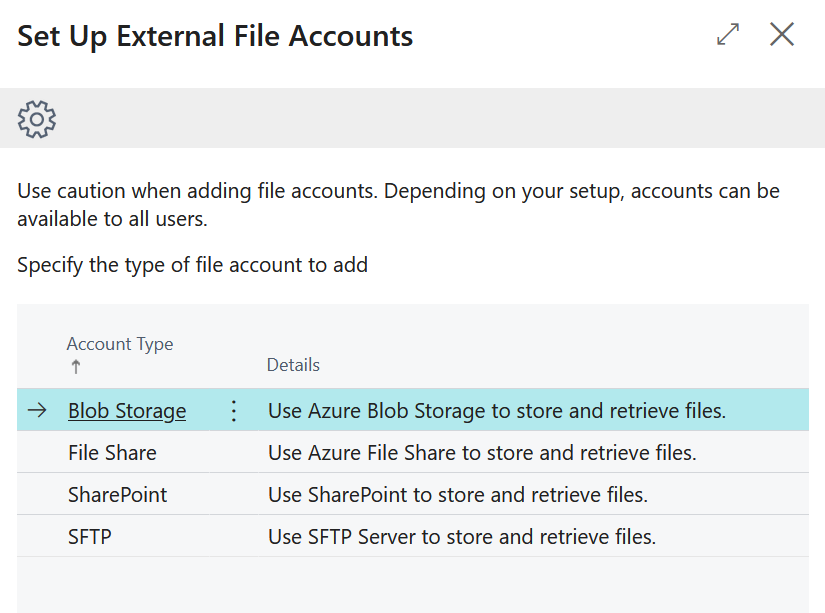
The framework is also extensible, allowing partners to integrate additional storage providers through extensions if required.
How Does It Work?
One of the biggest advantages is that nothing changes for end users.
Users continue to:
Drag and drop documents
Upload attachments
Download files
Open PDFs
Delete attachments
The only difference is where the files are physically stored.
Instead of saving the document inside the Business Central database, Business Central uploads it to the configured external storage and maintains a secure reference to it.
Configuring External File Storage
Configuration requires only two major steps.
Step 1 – Create an External File Account
Navigate to:
Search → External File Accounts
Choose your preferred storage provider.
Depending on the selected provider, you’ll configure:
Storage Account Name
SAS Token or Access Key
Container Name
SharePoint Tenant ID
Client ID
Client Secret
Base Folder Path
Business Central supports multiple storage accounts, making it easy to separate storage for different environments or business units.
Step 2 – Assign the File Scenario
Next, open:
Search → File Scenario Assignment
Assign:
Document Attachments – External Storage
Enable the scenario and select:
Root folder
Delete external file when attachment is deleted (optional)
Once enabled, every new attachment is automatically stored in external storage.
What About Existing Attachments?
Only newly uploaded attachments use external storage.
Existing documents remain inside Business Central until migrated.
Fortunately, Microsoft provides a Storage Sync action that moves existing attachments between Business Central and external storage, making migration straightforward.
Real-World Scenarios
This feature is particularly valuable for organizations that:
Process high volumes of purchase invoices.
Maintain customer contracts and legal documents.
Store engineering drawings or CAD files.
Archive quality and compliance certificates.
Manage manufacturing documentation.
Attach product images to item records.
In each case, External File Storage keeps Business Central responsive while ensuring documents remain readily available.
Things to Consider
Before enabling External File Storage:
Ensure your external storage is backed up.
Review access permissions and security.
Decide whether deleted attachments should also be removed from storage.
Test the setup in a sandbox before deploying to production.
Remember, once documents are stored externally, your organization is responsible for managing and protecting those files.
Final Thoughts
External File Storage is one of the most practical enhancements in Dynamics 365 Business Central for organizations dealing with growing volumes of document attachments. It helps reduce database size, improve performance, optimize storage costs, and leverage enterprise cloud storage without disrupting everyday business processes.
As businesses continue to generate more digital documents, adopting this feature is a smart step toward building a scalable, high-performing Business Central environment.
Stay tune for more updates..