The latest update to AL for Visual Studio Code introduces a powerful new command:
AL: Download Symbols from Global Sources
This feature allows developers to download extension symbol packages directly from Microsoft’s public NuGet feeds — without requiring a running Docker container or Sandbox environment.
If you’re a Dynamics 365 Business Central developer, this update will significantly simplify and accelerate your development workflow.
What’s New?
With this enhancement, you can:
✅ Download symbol packages directly from Microsoft’s global NuGet repository
✅ Configure and use custom NuGet feeds
✅ Restrict downloads to custom feeds only
✅ Specify country/region-specific symbol packages
✅ Avoid dependency on Docker or Sandbox just to fetch symbols
This is a huge productivity boost for AL developers working on localized or multi-region solutions.
What Are Symbol Files in Business Central?
In Microsoft Dynamics 365 Business Central, symbol files act as the “source reference”.
When developing in AL, your project needs awareness of existing application objects. Since the base app source code isn’t physically in your project folder, symbol files bridge that gap.
👉 In simple terms:
Before you start developing, you must download symbols so your extension knows what already exists.
Pre-Requisite
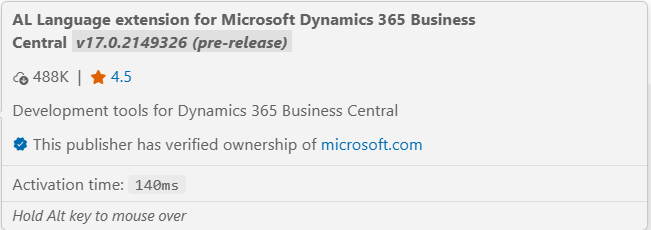
Make sure you are using the latest AL extension:
Extension Identifier:
ms-dynamics-smb.alMinimum Version:
17.0.2149326Install/update via Visual Studio Code
How It Works
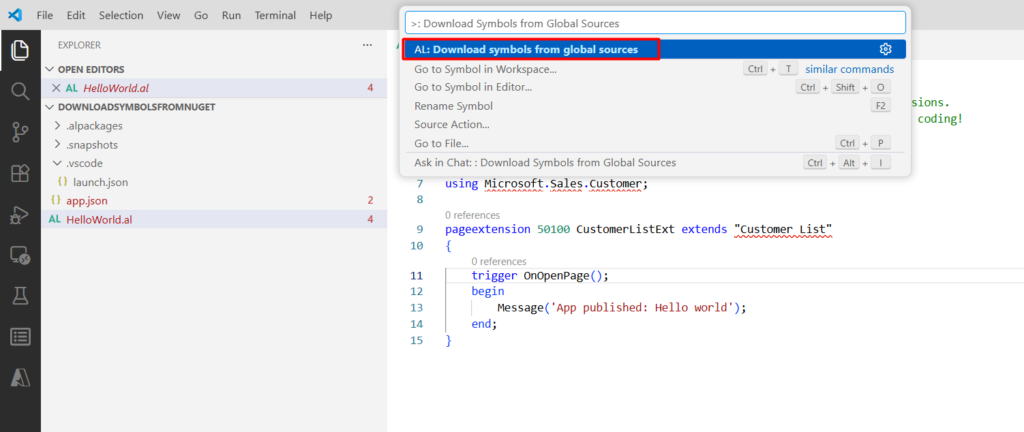
Step 1 – Open Command Palette (Ctrl + Shift + P)
Step 2 – then select AL: Download Symbols from Global Sources
Step 3 – Select Country/Region Code

Step 4 – You’ll be prompted to enter a localization code:
| Code | Description |
|---|---|
w1 | Worldwide (Base) |
us | United States |
| in | India |
| gb | Great Britain |
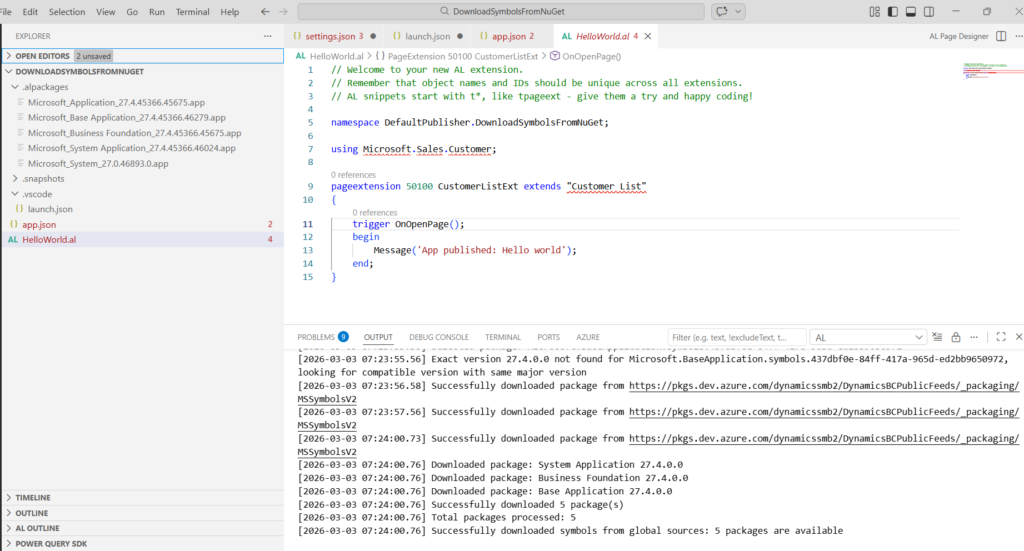
Step 5 – Symbols Download Automatically
Once selected:
Symbols are downloaded from Microsoft’s global feed
Saved automatically in: ./.alpackages
Step 6 – Configure Country/Region Permanently (Optional)
Under .vscode/settings.json update
{
“al.symbolsCountryRegion”: “us”
}
This ensures your symbols always match the correct localization before downloading.
Using Custom NuGet Feeds:
If you’re working with private extensions or enterprise apps – Configure Custom feeds using al.customNugetFeeds
Restrict downloads only to custom feeds using al.useOnlyCustomFeeds
This is especially useful for ISVs and partners managing proprietary apps.
How It Used to Work (And Why This Is Better)
Previously, developers needed:
A running Docker container
ORA Sandbox environment
Just to click Download Symbols.
You can fetch them directly from Microsoft’s global repository — no environment required.
This is particularly beneficial when:
Setting up new projects
Working on AppSource apps
Developing multi-country extensions
Speeding up onboarding for new developers
Why This Matters for ISVs & AppSource Developers
If you’re publishing to Microsoft AppSource, this feature:
Speeds up development
Simplifies CI/CD pipelines
Reduces environment dependency
Makes multi-region testing easier
For teams building IP solutions and deploying across tenants, this is a major enhancement.
Final Thoughts
The new AL: Download Symbols from Global Sources command removes friction from Business Central development.
Less setup.
Faster start.
More flexibility.
If you’re actively working with Business Central extensions, especially in multi-country or AppSource scenarios, this feature is worth integrating into your workflow immediately.
Stay tune..