With the new Business Central release a new feature has been introduced, which allows users to calculate the WithHolding Tax in Business Central.
In some countries/regions, companies must pay withholding tax to the government for certain third‑party services or vendor purchases. Business Central calculates withholding tax when you pay a vendor invoice, or when you post it, based on your setup. The tax amount is withheld from the payment and reduces the total amount owed to the vendor.
You can configure withholding tax by setting up Withholding Tax Codes and Vendors.
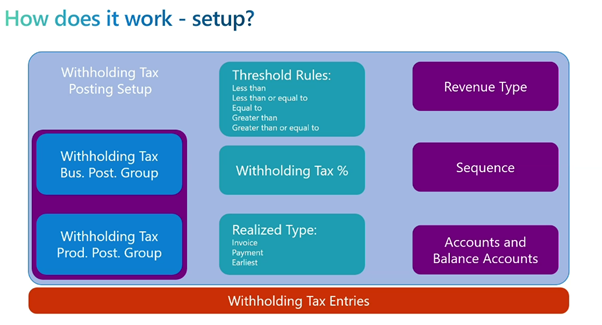
Lets see, how it works in Business Central
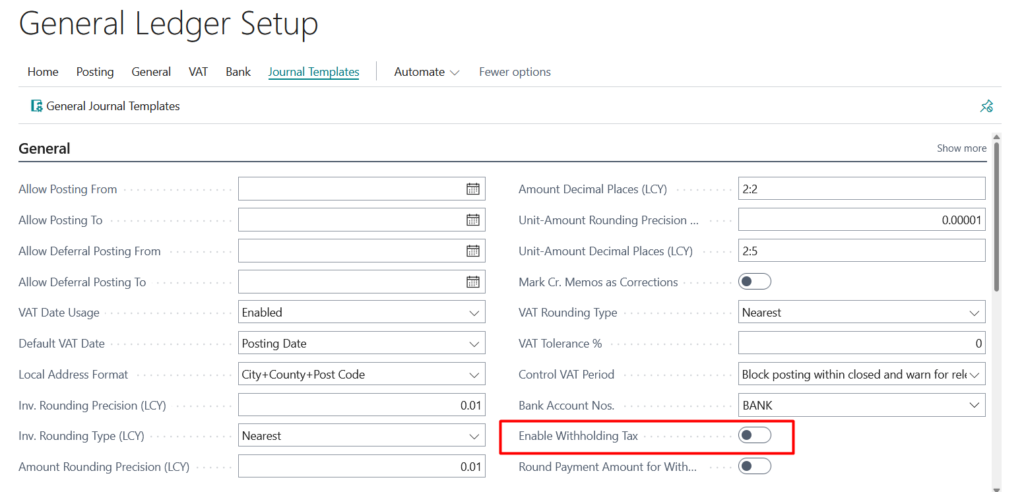
Step 1: Enable Withholding Tax
Navigate to: General Ledger Setup → General Tab
Enable Withholding Tax
Step 2: Create Withholding Posting Setup
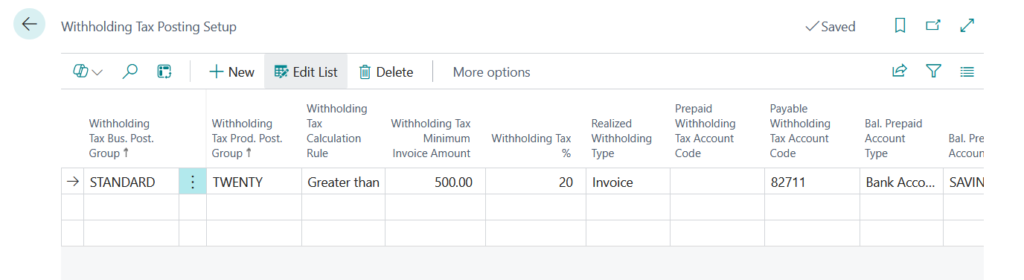
Similar to VAT or General Posting Setup, configure:
Withholding Business Posting Group
Withholding Product Posting Group
Withholding Revenue Type
Withholding Calculation Rule
Withholding %
Withholding G/L Accounts
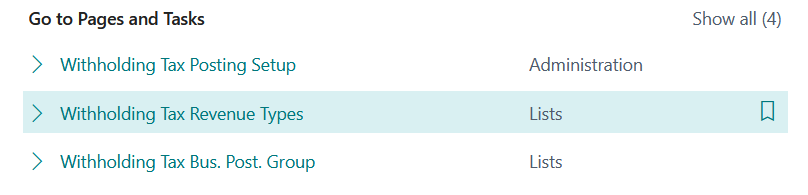
Note:Calculation Rules Available, you can define calculation thresholds using:
Less Than
Less Than or Equal To
Greater Than
Greater Than or Equal To
This allows you to apply withholding only when invoice values meet specific conditions.
Step 3: Define G/L Accounts
Withholding Payable / Prepaid G/L Account
WithHolding Balancing Account
These accounts will be used during posting to create proper financial entries
Step 4: Vendor & Item Configuration
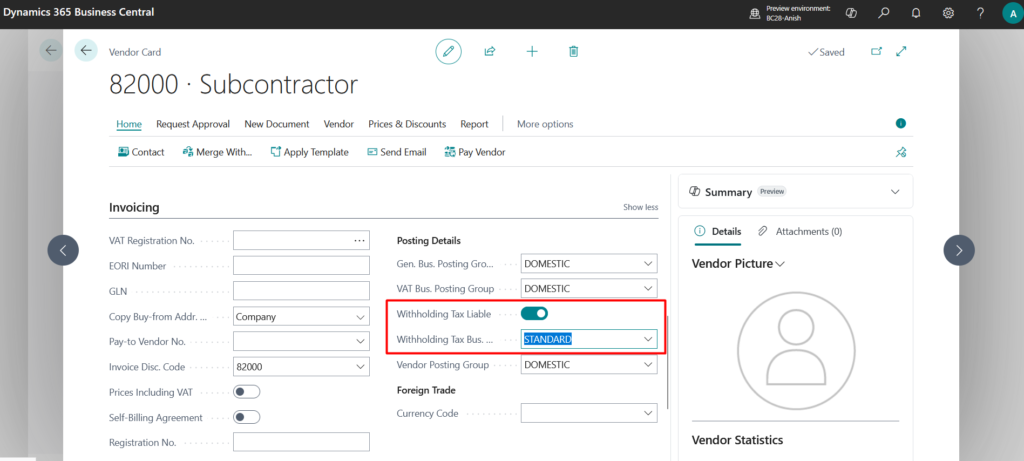
Vendor Card
Enable Withholding Liable
Assign Withholding Business Posting Group
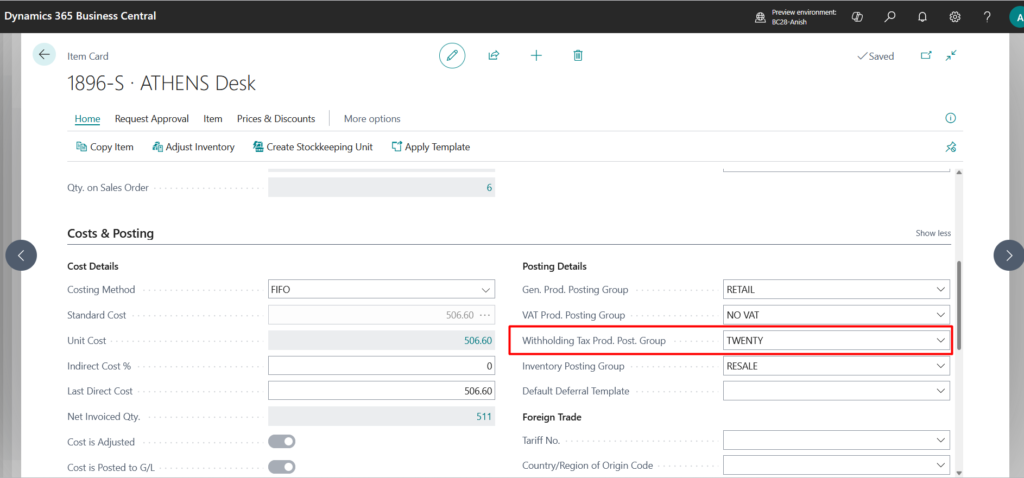
Item Card
Assign Withholding Product Posting Group
This ensures automatic tax calculation during purchasing.
Process Walkthrough
Let’s see it in action, example Scenario
- Vendor: 82000 – Subcontractor
- Item: 1896-S ATHENS Desk
Step 4: Create Purchase Invoice
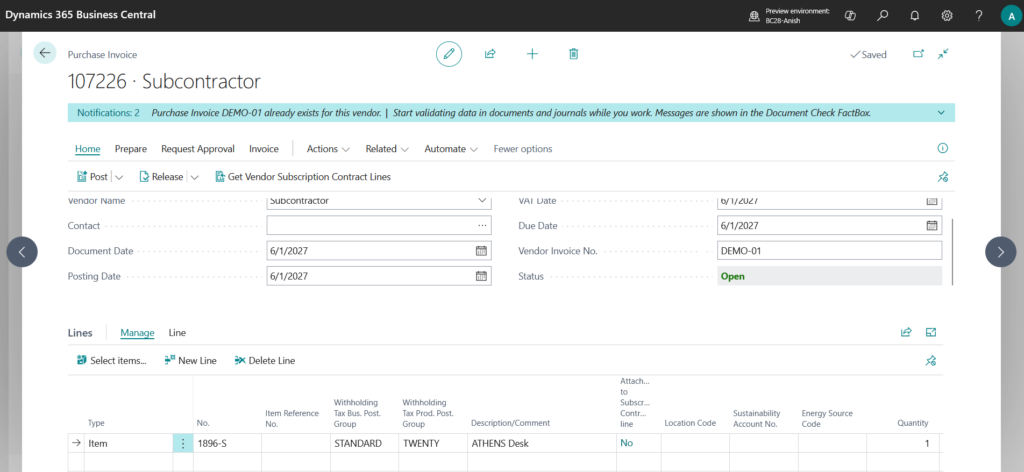
Create a new Purchase Invoice
Select Vendor 82000
Add item line 1896-S ATHENS Desk
The system will automatically:
Populate Withholding Business Posting Group
Populate Withholding Product Posting Group
Apply the defined calculation rule
Calculate the Withholding Tax Amount based on the configured %
Step 5: Post the Invoice
When you post the invoice:
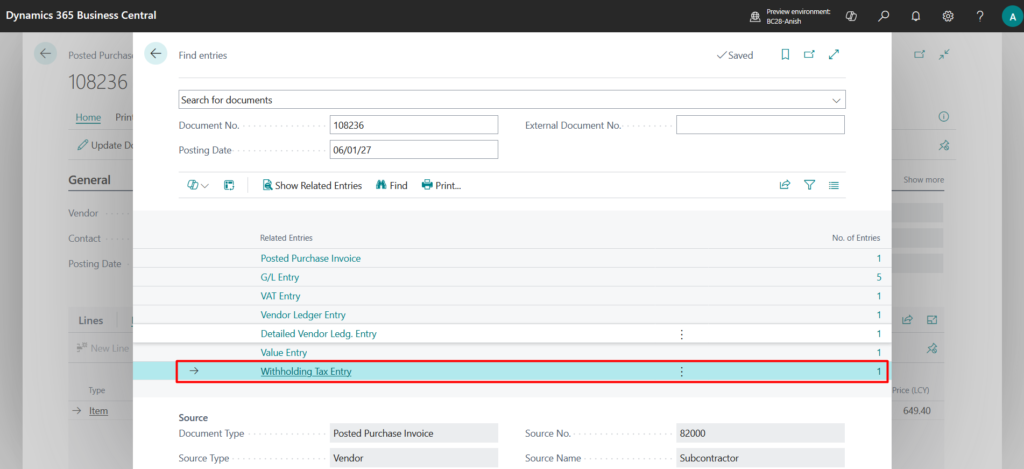
Withholding entries are created
G/L entries are posted automatically
The defined Withholding Payable/Prepaid account is updated
Proper balancing entries are generated
This ensures compliance and financial accuracy without manual intervention.

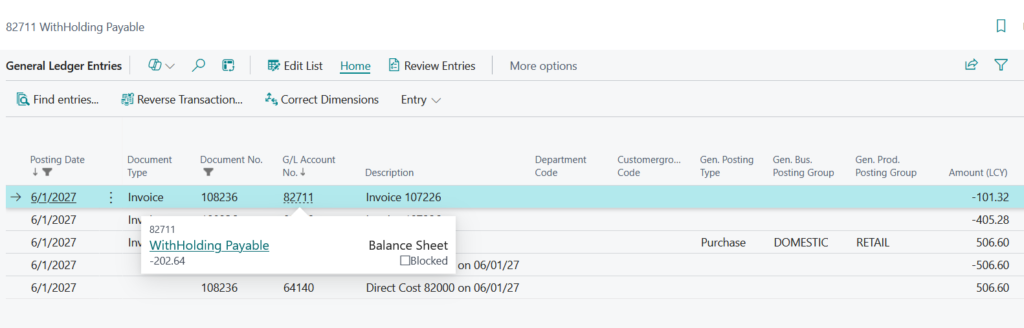
What Happens Behind the Scenes?
Upon posting:
-
Invoice total remains intact
-
Withholding tax is calculated separately
-
Net payable reflects deduction
-
Dedicated withholding ledger entries are created
-
G/L impact aligns with your posting setup
This provides:
-
Clear audit trail
-
Automated compliance
-
Structured financial reporting
Key Benefits of Withholding Tax in BC 28Native configuration (no customization required)
✔ Rule-based calculation thresholds
✔ Seamless vendor integration
✔ Automatic G/L posting
✔ Clean audit trail
✔ Supports cross-border tax compliance scenarios
Who Should Use This Feature?
Organizations operating in countries with mandatory withholding regulations
Companies paying subcontractors or professional service providers
Businesses handling international vendor payments
Finance teams looking to reduce manual tax adjustments
Final Thoughts
The introduction of vendor withholding tax calculation in Business Central 2026 Wave 1 is a significant step forward in strengthening financial compliance capabilities.
By embedding withholding logic directly into purchasing workflows, Microsoft continues to enhance Business Central’s ability to meet real-world regulatory requirements.
If you’re planning your upgrade to BC 28, this feature alone could eliminate custom solutions and improve your tax governance framework.
Stay tune for more updates…